Capture it while it’s on your mind.
Add a task, edit it as plans change, and check it off when you’re done. Everyday task entry works without an account or an internet connection.
 Lite TODO
A clear space to jot things down, break a bigger plan into small steps, and remember what’s next.
For Android · Optional AI and Premium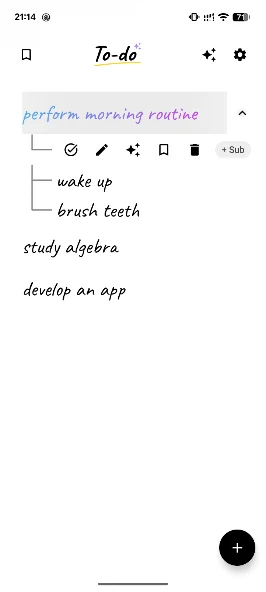
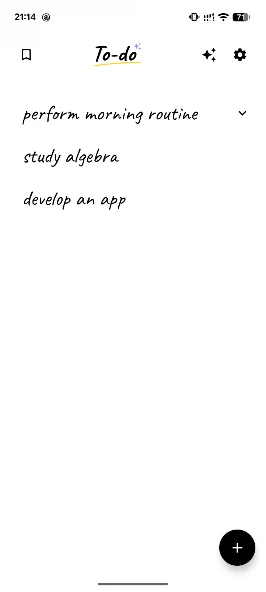
Add a task, edit it as plans change, and check it off when you’re done. Everyday task entry works without an account or an internet connection.
Use subtasks for routines, projects, or anything that feels too big to do all at once. Save a bookmark to reuse a task and its steps.
Add reminders for things you don’t want to forget. Keep your tasks together and return to the details when you need them.
Add a task you’d like to get done today.
Add a subtask or set a reminder for later.
Check things off and adjust your list as you go.
Your tasks, subtasks, reminders, and bookmarks are stored locally. Android backup may also copy app data according to your device settings.
AI is optional. When you ask for a draft, your request is sent to our online service and Google’s Gemini. Review and edit the result before saving it.
Before you get started.
Yes. Normal task entry and editing work without an account or an internet connection. Optional AI generation, ads, and purchases require online services.
Describe what you want to plan. AI generates a draft that you can review, edit, and then save. AI can make mistakes, so check the steps before you use them. Available allowances and optional Premium are shown in the app.
Yes. Save a bookmark for a task and its subtasks, then use it as a starting point the next time you need that routine.
Check that notifications are allowed for Lite TODO in Android settings. Also review the app’s alarm permissions and your device’s battery restrictions. If the problem continues, contact support with your device model and Android version.
Manage or cancel a subscription through Google Play under Payments & subscriptions. Clearing app data or uninstalling Lite TODO does not cancel your subscription.
Delete local tasks in the app or clear the app’s storage in Android settings. Manage device backups separately. For online data, open Settings → Request data deletion in Lite TODO, review the prepared email, and send it to support. The privacy policy explains retention and exceptions.
Questions, feedback, or something that isn’t working? Get in touch about Lite TODO.